What Do You Mean My Mac Is Running Out of Space?
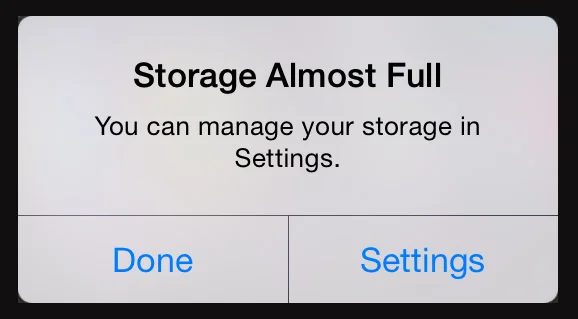
/A Mac can say it is running out of space for several different reasons, and that is part of what makes the warning so confusing. The message is usually such a surprise that you don’t notice the exact wording that describes the problem. Even if you do, it may not be clear.

It could be the Mac itself is low on storage, iCloud is nearing its limit, or an email account is running out of room. In some cases, the issue may actually be memory, or RAM.
The warning may appear when you are trying to save a file, download an update, open Mail, import photos, or install a new version of macOS. It may also show up when you are not doing anything that seems related. That is why the first thing to ask is not just, “How much space do I have?” The better question is, “Which kind of space is running low?”
Memory, Internal Storage, Cloud Storage, and Email Storage Are Not the Same Thing
One reason these warnings are confusing is that “space” can mean several different things. Your Mac has memory, internal storage, cloud storage, and often a separate email storage limit.
Memory is also called RAM. Think of RAM as the space your computer uses for thinking and running programs.
Internal storage is the storage space built into your Mac. This is where your apps, documents, photos, downloads, system files, and other data live.
Cloud storage usually means services like iCloud Drive, Dropbox, or Google Drive. These services store files online and may also sync copies to your Mac.
Email storage is the space used by your email account. Gmail, Comcast, iCloud Mail, and other email services all have their own storage limits. Although email may also be downloaded to your Mac, a warning about email storage usually means the email server online is reaching the storage limit for that account.
When the Mac Itself Is Running Out of Space
Check to see if the internal storage (SSD or Hard Drive) in running out of room by going under the Apple Menu to About This Mac. Depending on the version of macOS that you are running, you may have a Storage category, or you may need to click on More Info and scroll down to Storage Settings.
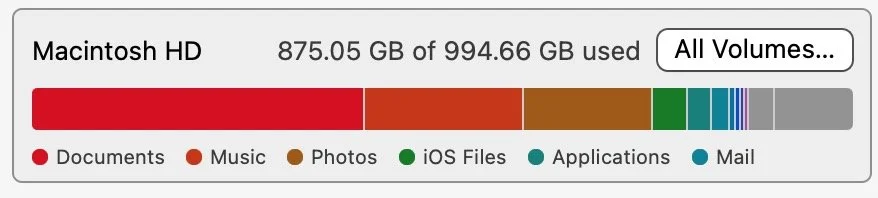
There you will see how much of your storage is being used and it will catagorize it, so you can get an idea how much space different types of files are using. In general, you want to have at least 40 GB of free space. If it is under 20 GB, you need to find a way to make more room.
If the Mac’s internal storage is getting full, you may see warnings about not having enough room to save files, install updates, or complete normal tasks. macOS also needs free space just to operate properly. Everything from browsing the internet to printing can be affected.
Usually music and/or photos take up a lot of room. Texts and emails often use a big chunk of space as well. There can also be hidden files like iPhone backups and software support files.
Occasionally, the problem is not ordinary files at all. A technical glitch can cause logs or other system files to grow much larger than they should. When that happens, a Mac can lose a huge amount of storage very quickly, and the cause may not be obvious without looking more closely.
When the Warning Is About Application Memory
It is rare, but an Application that you are using can just stop working, with a scary message. You may see a warning that your system has run out of application memory, or that one or more apps need to be quit.
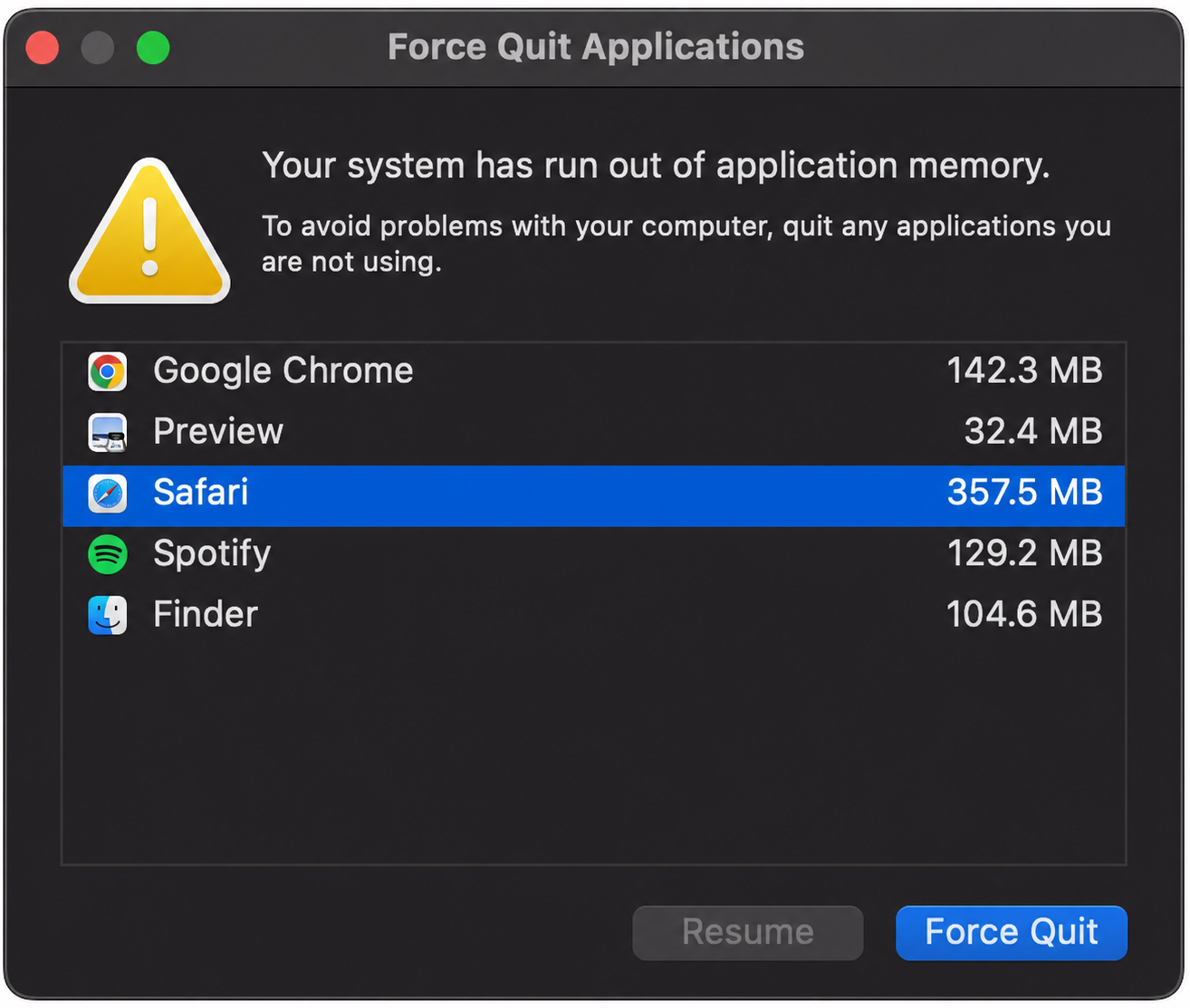
This does not usually mean your Mac has run out of room for files. It means macOS is having trouble giving apps the working space they need to keep running.
This can happen when too many apps or browser tabs are open, when one app is using far more memory than it should, or when the Mac is so low on internal storage that macOS does not behave properly.
Quitting apps or restarting the Mac may help temporarily. But if the warning keeps coming back, the real problem needs to be found. It may be a application leaking memory, or an internal process that has gone rogue. If you keep seeing this warning, it is a good time to get help. Please get in touch if you would like to schedule a support session.
When iCloud Is Running Out of Space
iCloud storage is different from the storage inside your Mac. iCloud is the online storage connected to your Apple account. It may be used for iCloud Photos, iCloud Drive, device backups, Messages in iCloud, and other Apple services like an Apple email account.
If iCloud is full, your Mac may still have plenty of internal storage available. But iCloud may stop syncing contacts, photos, documents, messages, or any other iCloud service you may have turned on.
This is especially confusing because iCloud can also save space on your Mac by keeping some files online-only. But that does not mean iCloud gives your Mac more physical storage. It just changes where some files are stored.
iCloud Drive & “Optimize Mac Storage” can create problems
This part is about cloud storage, especially iCloud Drive. It is separate from email storage.
When you turn on iCloud Drive, your Mac syncs certain files with iCloud and make them available on your other Apple devices. You can still see those files on your Mac, usually in the Finder, but they are also connected to iCloud.
When you turn on Desktop and Documents in iCloud Drive, the files on your Desktop and the files in your Documents folder become part of iCloud Drive. This feature works well if you have two computers and you want all that data to sync. That way you always have the same files and the same versions of those files on both Macs.
However, if you also turn on Optimize Mac Storage, your Mac is allowed to save space by removing some local copies of these files when space is needed. The files are still shown on your Mac, but some of them may have to be downloaded from iCloud before you can open them.
That sounds helpful, and sometimes it is. But if iCloud is removing local copies of files from your Mac, it means your Mac is already running out of room. This is best thought of as an emergency feature that lets you keep using the computer until the storage problem is addressed. It is not the same as actually solving the problem.
A Mac that is so full that iCloud has to remove local files may not work as well. It will often run more slowly. You may need an internet connection to open certain files. Backups may be incomplete. And the Mac may still struggle because the internal drive is too full for normal operation.
That is the part that confuses people. Some files are stored both on your Mac and in iCloud. Other files may appear to be on your Mac, but the actual file is only stored in iCloud until you download it.
It is also important to understand that iCloud and iCloud Drive are not the same thing as a backup. These are syncing services. If a file is stored only in iCloud and what you see on your Mac is just a link to that file, it will not be included in a Time Machine backup of your Mac. A local backup can only back up the files that are stored locally.
This does not mean iCloud gives your Mac more physical storage. Your Mac still has the same size internal drive.
This is why it is important to know whether a file is really stored on your Mac, stored in iCloud, or stored in both places. One clue is the small cloud icon with a downward arrow next to the file name. It means the file is not currently stored on your Mac and must be downloaded from iCloud before you can open it or back it up.
When an Email Account Is Running Out of Space
Email accounts can also run out of room. When you get a warning about email storage, the problem is that the email account itself is getting full. It is not a warning about the storage inside your Mac.
The fact that a Mac is too full can cause email problems. Mail may slow down, stop downloading messages, or have trouble saving attachments. But that is a different issue. An email storage warning usually means the mailbox at the email provider is running out of space.
If your email account is almost full, you may stop receiving mail. New messages may bounce back to senders. Mail may not sync correctly. You may also see warnings from the email provider telling you to free up space or buy more storage. In most cases, buying more storage is the simplest and safest solution.
With Gmail, you can buy extra storage through Google One. That storage is shared by Gmail, Google Drive, and Google Photos. With iCloud Mail, you can buy more iCloud storage. Yahoo Mail also offers a paid Mail Plus plan with more storage and email forwarding. Other providers may have fixed mailbox limits, so the answer depends on the company providing the email account.
Large attachments can be a problem. Years of saved mail and sent messages can add up. In some cases, it may be better to remove attachments from old messages instead of deleting the messages themselves. That lets you keep the email record while reducing the amount of storage the account is using. If you are using an older POP email account, deleting messages or attachments from your Mac may not help your situation. See my article Understanding Email: POP, IMAP, and Webmail
Sent messages can also take up a lot of space. You do not necessarily have to delete all of them. In many cases, deleting the oldest sent messages, or removing attachments from older sent messages, may be enough to make a noticeable difference. If you are using the Apple Mail program, you can move vast amounts of your older messages to the ON MY MAC section. This keeps your emails on your computer but removes it from your email account, reducing the need to upgrade.
What About Clearing Caches?
Clearing caches can sometimes free up a little space, and occasionally it helps solve a specific problem. But it usually does not create enough extra room to make a major difference.
Caches are temporary files that apps and websites create so they can load faster or work more efficiently. If you delete them, the Mac or the app may simply recreate them later. So, clearing caches can be part of troubleshooting specific issues, but it is usually not the main solution when a Mac is seriously low on space.
Be Careful with the Library and System Folders
Never delete files from the Library or System folders unless you are very sure of what you are doing. These are technical areas of the Mac and should usually be left alone.
The User Library also needs to be treated carefully. Your emails, messages, settings, and other important files may be stored there. It can be tempting to look there for large amounts of data, but it is usually prudent to avoid deleting anything from the User Library unless you know exactly what it is and why it is safe to remove.
What You Should Do First
The first thing to do when you get any kind of warning about running out of space is to take a screenshot (or even a photo) of the message. Before deleting things, find out which space is actually running low.
If the Mac itself is low on available storage, look at the storage totals in System Settings or About This Mac. Check out iCloud Drive and see if Optimize is turned on. You can’t add more storage on a modern Mac, so you may need to move certain files to an external drive, or even buy a Mac with more storage capacity.
If iCloud is low on storage, check what is using iCloud space under Manage. You may need to increase the iCloud storage that you pay for.
If an email account is low on storage, delete a ton of emails, move them to the On My Mac read if you are using the Apple Mail program, or just pay for more capacity.
And if the Mac is also slow, the problem may not be storage at all. It may be memory, an outdated system, a failing drive, or a computer showing its age.
The Bottom Line
When your Mac says it is running out of space, the warning is real, but it may not mean what you first think it means.
It could be your Mac’s internal storage. It could be iCloud. It could be your email account. Or it could be memory.
The important thing is not to panic and not to start deleting things blindly. First, figure out which kind of space is actually running low. Once you know that, the solution becomes much clearer.