How to “Email” Large Files
/Have you ever tried to email a large file and had it fail to go through?
Emails can fail to send for lots of reasons, but when you attach a file that is too large, it may not go through.
Email was not really designed for sending large files. It was designed for sending messages. Attachments were added later, and every email provider has its own limits.
A good rule of thumb is to avoid email attachments larger than 10 MB. Some email services allow more than that. Gmail, for example, allows personal accounts to send attachments up to 25 MB. But email limits apply at both ends. Your email provider has to allow the message to be sent, and the recipient’s email provider has to allow the message to be received. Even if your email service lets you send a large attachment, the recipient’s service may reject it, or the message may be blocked along the way.
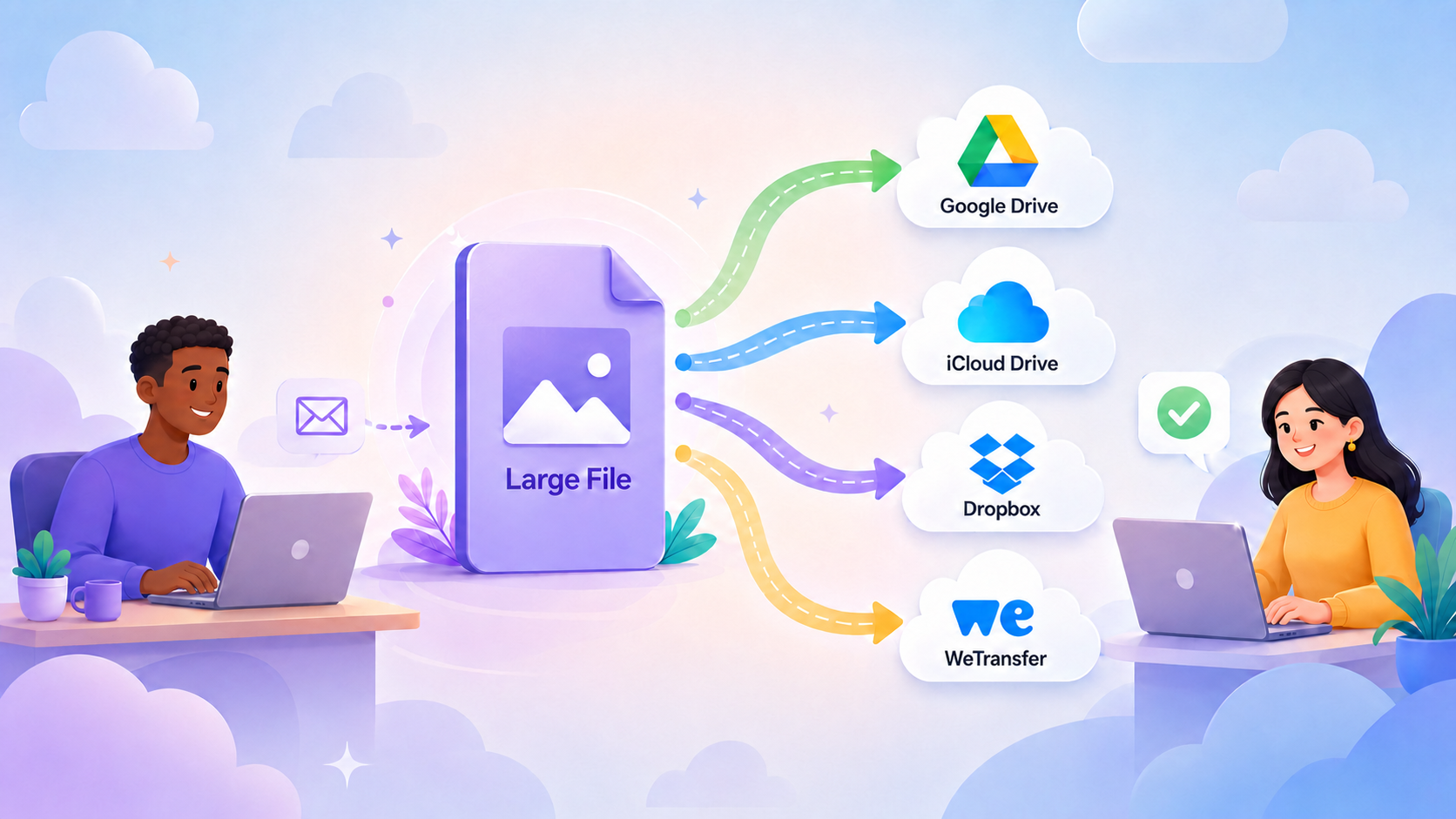
So instead of trying to “email” a large file, the better method is usually to upload the file somewhere and email a link.
That is how most modern large-file sharing works. The file is uploaded to a server somewhere – usually referred to as “the cloud” – and the recipient clicks a link to download it.
The limits for these services change often, so I would not choose a service based only on a number you read in an article. The important point is that email attachments are small, while cloud-link services can send much larger files.
Apple Mail Drop
If you have an Apple Account with iCloud set up, Mail Drop lets you send large attachments without really sending them as normal email attachments. The file is uploaded through iCloud, and the recipient gets a download link. You do not need to be sending from an Apple email address. The person receiving the file does not need an Apple account or an Apple device.
Mail Drop works from Apple’s Mail app on a Mac, the Mail app on an iPhone or iPad, or from iCloud.com/mail in a recent web browser. To set it up, open your Mail account settings and turn on “Send large attachments with Mail Drop.”
Apple says Mail Drop can handle attachments up to 5 GB. The recipient has 30 days to download the file. Mail Drop attachments do not count against your regular iCloud storage, although Apple does have separate Mail Drop limits. If you send too many large attachments, or reach Apple’s Mail Drop storage limit, Mail Drop may stop working until older attachments expire.
People with Apple Accounts can use Mail Drop to send large files from their Macs, iPhones, iPads, and even from Windows computers using iCloud.com/mail.
Gmail and Google Drive
If you use Gmail in a web browser, Google Drive is a very convenient way to send large files.
Gmail allows attachments up to 25 MB. If the file is larger than that, Gmail can automatically replace the attachment with a Google Drive link. This works when you are using Gmail’s webmail in a browser like Safari, Chrome, or Firefox. If that is how you access your email, this is a slick solution.
Once you click Send, a Sharing Options window may open. You can choose to share the file with anyone who has the link, or you can limit access to specific people. If you limit access, the recipient may need to sign in with a Google account.
If you are using a Gmail account with Apple’s Mail app, this automatic Google Drive feature does not work the same way. You can still use Google Drive, but you need to upload the file to Google Drive yourself, copy the share link, and paste that link into your email.
To do that, go to drive.google.com and upload your file. If you have the Google Drive desktop app on your Mac, you can also drag the file into Google Drive from the Finder. Once the file is uploaded, click the three vertical dots next to the file name and choose Share.
Under General Access, you can leave the file Restricted and share it only with the recipient. If you do not need to restrict access, click Restricted and choose Anyone with the link. Once you copy the link, you can paste it into an email and send it to anyone.
However, if you are using a Gmail account in Apple Mail on a Mac, it is often simpler to just use Mail Drop.
Other Cloud Storage Services
Other cloud storage services with free tiers include MEGA, Box, and pCloud.
Dropbox
Dropbox is also a good way to send large files, especially if you already use it.
There are two different ways to think about Dropbox sharing. The first is a regular Dropbox shared link. You put the file in Dropbox, create a link, and email that link to the other person. As long as the file remains in your Dropbox and the link still has permission to access it, the link can continue to work. There is not a short automatic expiration date the way there is with some file-transfer services. By default, the recipients can only download and view the file. If you want to allow editing or change other permissions, you can do that on the Dropbox website.
Dropbox also has a feature called Dropbox Transfer. In the Dropbox folder, you select Transfer a Copy after control-clicking on a file. This breaks the link between your file and the copy that your recipient receives. Depending on the type of Dropbox account you have, you may be able to set an expiration date and password for the transfer.
WeTransfer
WeTransfer is popular because it is simple. You upload the file, enter the recipient’s email address, and WeTransfer sends them a download link.
It is a good choice when you want to send a file once and do not want to explain Dropbox, Google Drive, or iCloud to the recipient.
At the time of this writing, WeTransfer’s free plan has a file-size limit of 3 GB and a monthly maximum of 10 transfers.
Other Upload-and-Send Services
There are other services like WeTransfer that offer a free tier. They include Smash, TransferNow, Filemail, Hightail, and SwissTransfer.
AirDrop
AirDrop is different because it does not use email at all.
If both people are nearby and both are using Apple devices, AirDrop may be the fastest way to send a large file. You can send photos, videos, PDFs, documents, and other files directly from one Apple device to another.
AirDrop is not useful for sending a file across town or across the country. But if the person is in the same room, it can be much faster than any email or cloud method.
Be Careful With Sensitive Files
Sending a link is convenient, but it is not automatically private.
If you send someone a link that says “anyone with the link can view,” that link may be forwarded to someone else. That may be fine for vacation photos. It may not be fine for tax returns, medical records, legal papers, financial documents, or anything with a Social Security number.
For sensitive files, use a service that lets you limit access, set an expiration date, or require a password. When in doubt, do not send private information casually by email.
My Practical Recommendations
For people with an Apple Account who use Apple’s Mail app, Mail Drop is a good place to start. Gmail users should usually use Google Drive.
Dropbox users can create a regular Dropbox shared link.
For a simple one-time transfer without setting up a shared folder, WeTransfer is worth considering.
Outlook or Microsoft 365 users will usually be most comfortable with OneDrive.
And when both people are in the same room using Apple devices, AirDrop may be the easiest choice of all.
Remember, Mail Drop and AirDrop are free to use. The other services usually have free options, but those free options may include storage limits, file-size limits, monthly transfer limits, or other restrictions.