Dropbox Is Convenient, But It Is Not the Same as a Backup
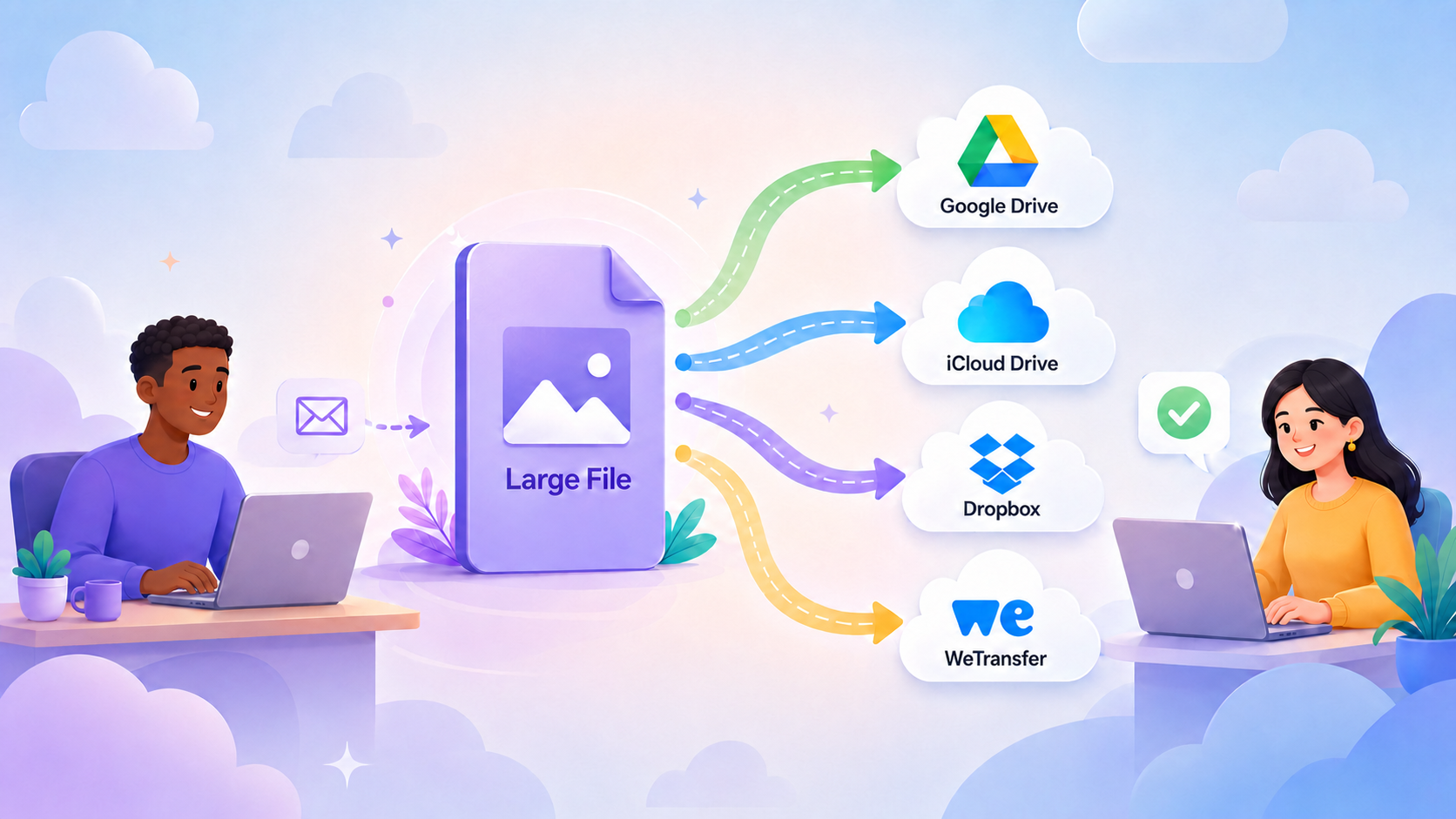
/Dropbox can be a very useful way to keep your files available on more than one device. It can also be a good way to share files with other people, move files between computers, and free up space on a Mac that is getting too full.
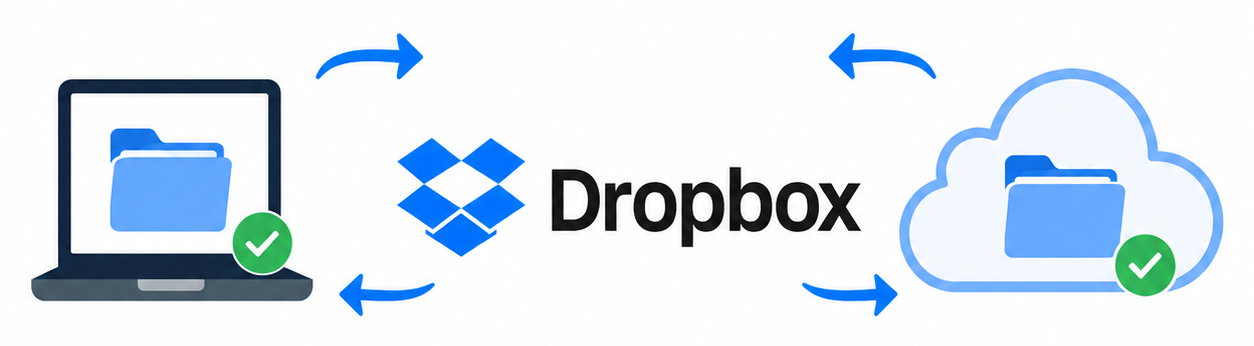
But there is one important thing to understand: Dropbox is not the same thing as a complete backup system. This is especially true if you use Dropbox in “online-only” mode.
What Dropbox Does
Dropbox is a cloud storage and syncing service. When you put files in Dropbox, they are uploaded to your Dropbox account. Those files can then be accessed from your other computers, your phone, your iPad, or the Dropbox website.
If you install the Dropbox desktop app on your Mac, Dropbox adds a Dropbox folder to your computer. That folder looks like a normal folder in the Finder. You can drag files into it, organize folders inside it, and open files from it.
Anything you put in that folder syncs to your Dropbox account. If you use Dropbox on another computer with the same Dropbox account, those same files can appear there too.
How to Get Files into Dropbox
There are two basic ways to put files into Dropbox.
The first way is to use the Dropbox folder on your Mac. You can drag files or folders into the Dropbox folder, or copy and paste files into it. Once the files are there, Dropbox uploads them to your account.
The second way is to upload files through the Dropbox website. You can go to dropbox.com, sign in, and upload files or folders from another location on your computer. This can be useful if you are using a computer that does not have the Dropbox desktop app installed, or if you only need to upload something once.
For most everyday use, the Dropbox folder is simpler. You work with files in the Finder the way you normally would, and Dropbox handles the syncing in the background.
Be Careful: Dropbox Syncs Changes Everywhere
This is the part that sometimes catches people by surprise.
Dropbox is a syncing service. That means changes you make inside the Dropbox folder are synced to Dropbox online and to your other devices.
If you delete a file from the Dropbox folder, Dropbox treats that as a real deletion. The file is deleted from Dropbox online and from other computers using the same Dropbox account.
The same is true if you move a file out of the Dropbox folder. Dropbox sees that file as having been removed from Dropbox. The file may still exist wherever you moved it on that one computer, but it is no longer in Dropbox online, and it will disappear from the Dropbox folder on your other devices.
This is different from simply “taking it off this Mac.” If you only want to save space on your Mac, do not delete the file from Dropbox. Use Dropbox’s online-only feature instead.
Keeping Dropbox Files Online-Only
One of Dropbox’s most useful features is the ability to keep files online-only. This means the files appear in your Dropbox folder, but they are not fully stored on your Mac.
You can still see the file names. You can still see the folders. But the actual contents of the files are stored in Dropbox online. When you open one of those files, Dropbox downloads it so you can use it.
This can save a lot of space. For example, you might have 500 GB of files in Dropbox but only want a small portion of them taking up space on your Mac. Online-only files let you see everything without storing everything.
To make a file or folder online-only, open your Dropbox folder in the Finder, Control-click or right-click the file or folder, and choose Make online-only.
If you later want that file or folder stored on your Mac again, Control-click or right-click it and choose Make available offline.
The wording may vary slightly depending on your version of macOS and Dropbox, but the idea is the same:
Online-only means the file is stored in Dropbox online and uses very little space on your Mac.
Available offline means the full file is stored on your Mac and can be opened even without an internet connection.
Making New Dropbox Files Online-Only Automatically
You can also make online-only the default setting for new files and folders added to Dropbox.
On a Mac, click the Dropbox icon in the menu bar. Click your profile picture or initials, then choose Preferences. Go to the Sync tab. Look for the setting called New files default, and choose Online-only.
To make existing Dropbox files online-only, open your Dropbox folder in the Finder. You can select individual files or folders, select many items at once, or Control-click the Dropbox folder itself. Then choose Make online-only. Dropbox will remove the local copies from your Mac while keeping the files in Dropbox online.
When you move a file into Dropbox and make it online-only, the full file is removed from local storage on your Mac. You can still see it in the Dropbox folder, but it is stored in Dropbox online until you open it or choose Make available offline.
The Big Drawback: Online-Only Files Are Not Really on Your Mac
Online-only Dropbox files can be confusing because they look like they are on your Mac. You see them in the Finder. They appear in their folders. You may even forget that they are not actually stored on the computer.
That is where the backup problem begins.
Time Machine backs up files that are stored on your Mac. If a Dropbox file is online-only, the full file is not really on your Mac. Time Machine may back up the placeholder, but it is not the same as backing up the actual file contents.
That means you should not assume that Time Machine has a complete backup of your entire Dropbox if most of your Dropbox files are online-only.
This surprises a lot of people. They think, “I have Dropbox, and I have Time Machine, so I must be doubly protected.” But if the Dropbox files are not stored locally, Time Machine does not have the full files to back up.
Dropbox Sync Is Not the Same as Backup
Dropbox does provide some protection. It can help recover recently deleted files or older versions of files, depending on your Dropbox plan and retention period. That can be very helpful.
But sync and backup are different.
Sync keeps devices and the cloud matched. If you delete a file in Dropbox, that deletion syncs everywhere. If you move a file out of Dropbox, that removal syncs everywhere. If a file gets changed, that change syncs everywhere. If your account has a problem, or if you accidentally reorganize or delete a large folder, Dropbox faithfully syncs the mistake.
A backup is different. A backup is supposed to preserve a separate copy of your files so you can recover from mistakes, failure, theft, corruption, or accidental deletion.
Dropbox is excellent for access and syncing. It can be part of a backup strategy. But it should not be your only backup strategy.
How to Work Around the Backup Problem
There are two safer ways to handle Dropbox files.
If You Have Enough Room, Keep Dropbox Files on Your Mac
If your Mac has plenty of storage space, the safest and simplest approach is not to use online-only storage for important Dropbox files.
Instead, keep your Dropbox files available offline. That means the full files are stored on your Mac, not just represented by placeholders in the Finder. Once the files are actually stored on your Mac, Time Machine can back them up along with the rest of your computer.
This gives you two kinds of protection: Dropbox keeps a synced copy online, and Time Machine keeps a backup copy on your backup drive.
If You Do Not Have Enough Room, Use an External Drive
If your Mac does not have enough room to store all of your Dropbox files, do not leave important files online-only without another backup.
A safer approach is to keep the large Dropbox archive on an external drive. The files can still be available to you, but they are not taking up space on the Mac’s internal drive.
Then make sure Time Machine backs up that external drive along with the internal drive on your Mac. In Time Machine settings, check the Options area and make sure the external drive is not excluded from the backup.
This setup gives you a real local copy of the files and a real Time Machine backup of that copy.
Contact me if you need help setting up an external drive with your online Dropbox files, and making sure it backs up to Time Machine.
The key point is this: if a file matters, it should exist in at least two places. An online-only Dropbox placeholder is convenient, but it should not be treated a backup.
Advanced Options to Backup Online Dropbox Files
There are some cloud-to-cloud services that can copy Dropbox files to another online storage service, but I usually consider those an advanced option. For most home users, the safer and easier choices are still simpler: either keep Dropbox files available offline so Time Machine can back them up, or store the files on an external drive and make sure Time Machine backs up that drive too.
My Recommendation
Online-only files are fine for convenience. They are a backup. The safest approach is to use Dropbox as one part of your file system, not as a backup plan.