Five Smart Decisions Every Mac Owner Should Make
/After decades of supporting Macs, iPhones, and iPads, I've noticed that the people who have the fewest computer problems tend to make the same smart decisions. These simple habits can help protect your data, extend the life of your Mac, and save money in the long run.
1. Have a Real Backup Strategy
This is by far the most important decision you can make.
A backup is simple: every important file should exist in at least two places. One copy is the original and one copy is the backup. It doesn't matter very much which copy is lost, as long as there is another copy available.
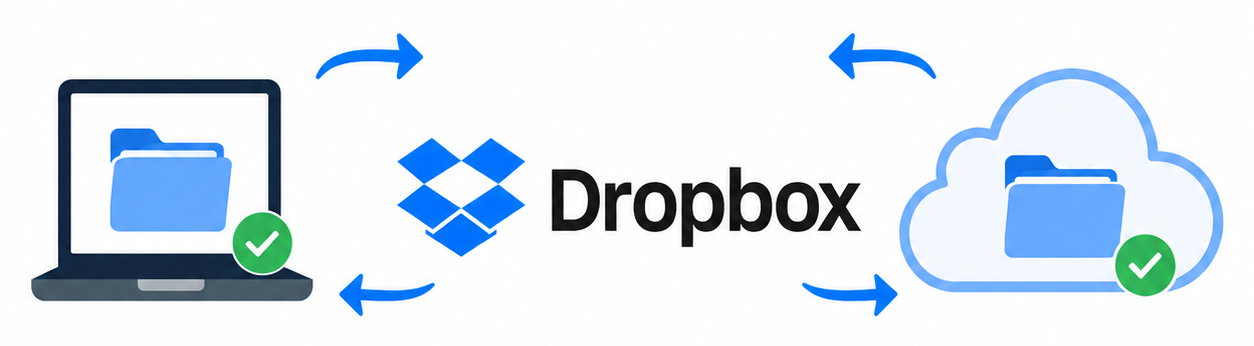
Many people assume that because their files are in iCloud, they have a backup. Unfortunately, that is not necessarily true. iCloud is primarily a synchronization service. If a file is accidentally deleted on one device, that deletion can be synchronized to your other devices as well.
For most people, I recommend having both a local backup and a cloud backup.
A local backup is usually Apple's Time Machine, which stores copies of your files on an external drive connected to your Mac. Time Machine makes it easy to recover files that were accidentally deleted or changed.
I also recommend a cloud backup service such as Backblaze. For about $100 per year, Backblaze continuously backs up your Mac to the cloud. If your computer is stolen, damaged in a fire, or suffers a complete drive failure, your files can still be recovered.
The safest approach is to have three copies of important files: the original, a local backup, and a cloud backup.
2. Buy Enough Storage
This is one of the most common mistakes when purchasing a new Mac.
Many people buy the least expensive model because they believe their needs are modest. After all, they only use email, browse the web, store photos, and manage personal documents.
The problem is that storage requirements tend to grow every year. Photos become larger, videos consume more space, and applications continue to increase in size.
Unlike older Macs, most current Macs cannot have their internal storage upgraded after purchase. The amount of storage that comes with the computer is usually the amount you'll have for the life of the machine.
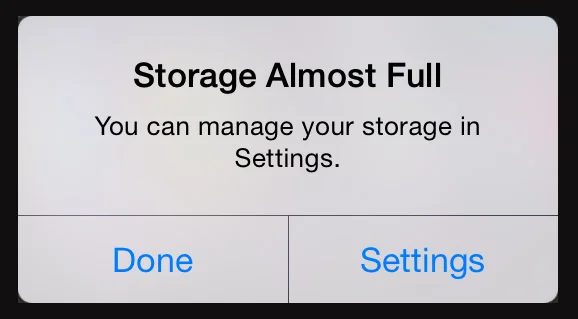
I regularly see people purchase a Mac with minimal storage and then completely run out of space a few years later. At that point, they are forced to make difficult decisions about deleting files, moving data to external drives, constantly managing available space, or replacing the computer sooner than expected.
As a general rule, I recommend buying at least twice as much storage as you are currently using. Spending a little more up front can significantly extend the useful life of your Mac.
3. Replace Your Mac Before It Becomes Obsolete
Macs generally last a long time, but eventually every computer reaches a point where it starts falling behind.
The biggest issue is software support. The latest version of macOS is usually the most secure. Apple generally provides security updates for the current version of macOS and the two previous versions, but once a Mac becomes too old to run one of these supported versions, it begins to fall behind in security protection.
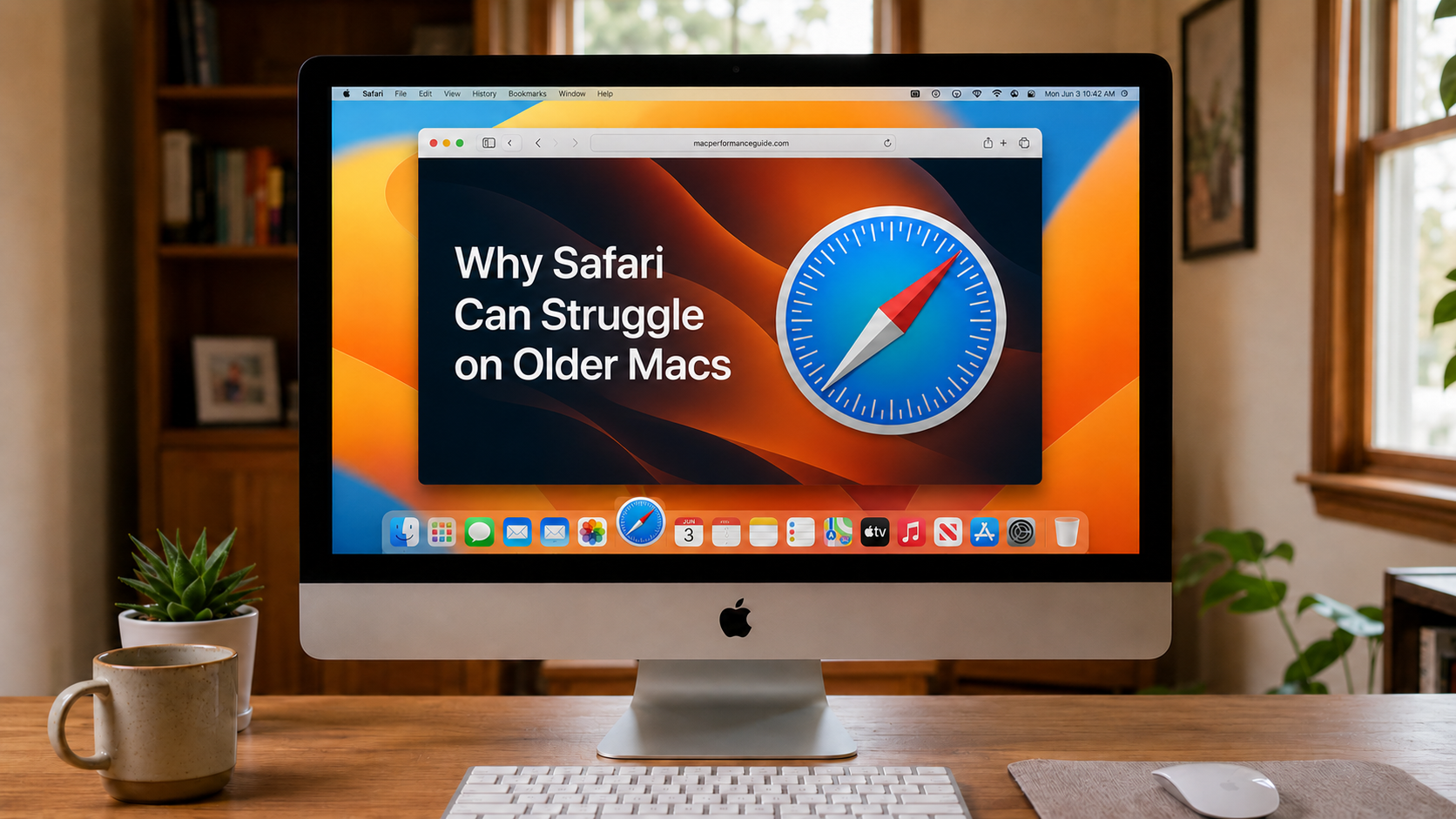
The effects are not always obvious at first. The computer may still turn on, launch applications, and seem to work normally. However, older Macs gradually run into compatibility problems. New versions of Safari, Chrome, Microsoft Office, and other applications eventually require newer versions of macOS. Websites become more demanding, and some banking, healthcare, government, and business websites may stop working properly.
At the same time, aging hardware can become less reliable. Batteries wear out, storage devices fail, and performance often declines. While some repairs may be worthwhile, there comes a point where investing more money in an aging computer no longer makes sense.
Many people assume that if a Mac still turns on, it is good enough to keep using. Unfortunately, that's not always true. A computer can appear to be working perfectly while quietly becoming less secure, less compatible, and less reliable.
As a general rule, once your Mac can no longer run one of the three most recent versions of macOS, it's a good time to start planning for a replacement. A planned upgrade is usually far easier—and less stressful—than replacing a computer after it fails.
4. Pay Attention to Warning Signs
Computers usually provide warnings before major failures occur.
Frequent crashes, battery warnings, unusual noises, excessive heat, persistent error messages, or USB ports that stop working reliably should not be ignored. I often see Macs that intermittently fail to recognize external drives, printers, keyboards, or iPhones. These problems may seem minor at first, but they can indicate underlying hardware issues that often become worse over time.
Small problems rarely fix themselves. Addressing an issue early is almost always less expensive—and far less frustrating—than waiting for a complete failure.
If you're experiencing any of these symptoms, check with me before assuming you need a new Mac. Some issues can be fixed quickly and inexpensively, while others may be signs that a computer is reaching the end of its useful life. A brief evaluation can often help you decide the most cost-effective path forward.
5. Upgrade macOS Thoughtfully
Many users install a new version of macOS the day it becomes available.
Unfortunately, new operating systems sometimes introduce bugs, compatibility problems, or unexpected changes. This is especially true during the first few months after release. If possible, avoid upgrading to macOS Tahoe. It has been a particularly problematic macOS.
Unless you need a specific new feature, I generally recommend waiting several months before upgrading. Let Apple and software developers work through the early issues first.
A little patience can save a great deal of frustration.
If you're unsure whether your backups are adequate, your Mac has enough storage, or it's time to replace an aging computer, feel free to contact me. A short conversation today can often prevent a much bigger problem tomorrow.