Apple’s Motion-Sickness Dots Are Weird – But They May Actually Help
/One of Apple’s most useful new features may also be one of its strangest. It is called Vehicle Motion Cues, but most people will probably think of it as “those little dots on the screen.”
The idea is simple. If you get carsick when you read, look at your phone, or try to use an iPad or MacBook while riding in a car, Apple can display small animated dots around the edges of the screen. These dots move in response to the motion of the vehicle. When the car turns, accelerates, or slows down, the dots move too.
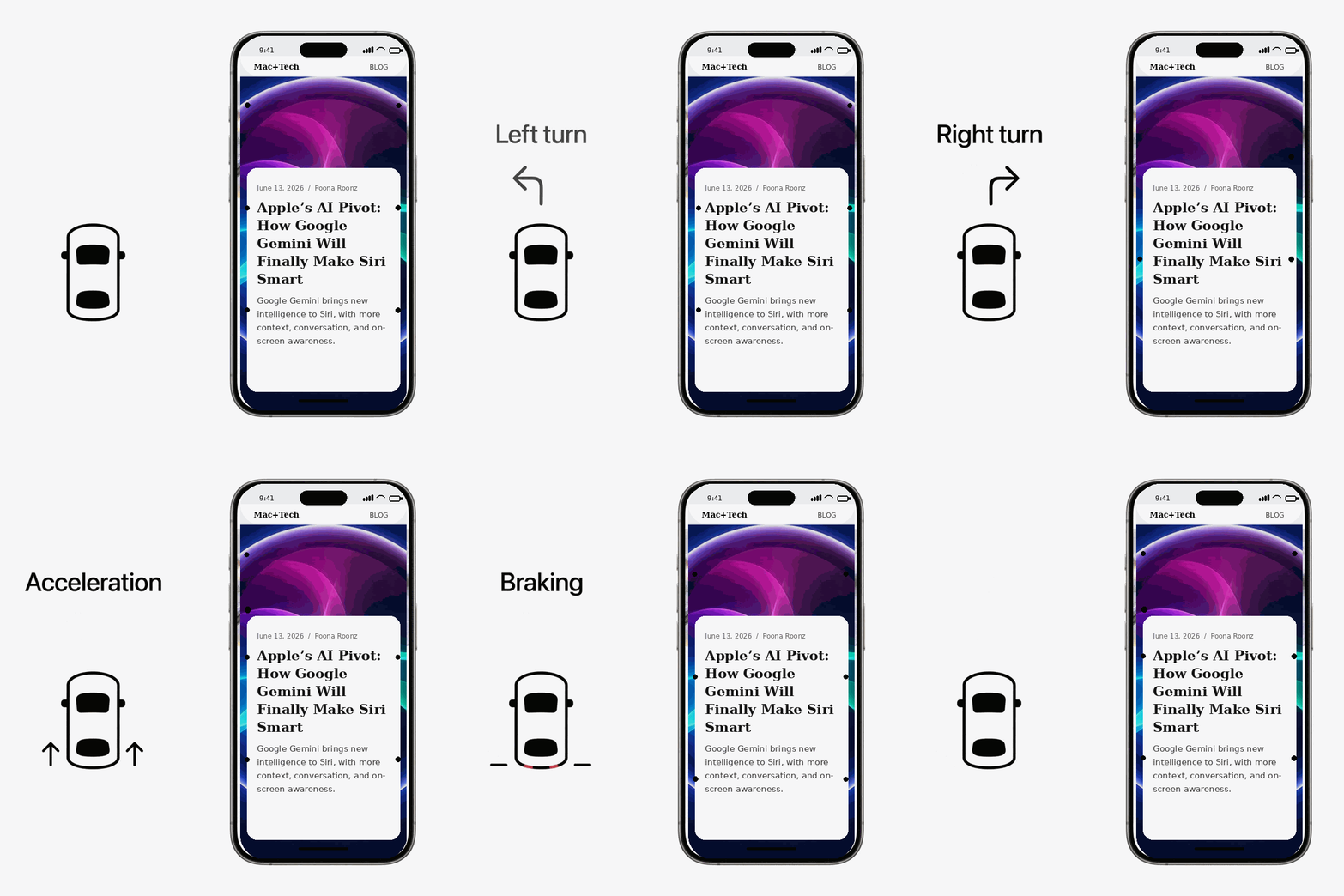
That may sound odd, but it addresses a very real problem. Motion sickness often happens because your body feels movement, but your eyes are focused on a still screen. Your inner ear knows the car is moving. Your eyes are telling your brain that nothing is moving. That mismatch can lead to nausea, dizziness, sweating, and that awful feeling that you need to stop reading immediately.
Vehicle Motion Cues tries to reduce that mismatch. The dots give your eyes a little bit of motion information while still letting you read or use the screen. They stay around the edges, so they are not supposed to interfere much with what you are doing.
The Verge recently tested the feature and found that it made a real difference. The writer was able to read and even work from the passenger seat without getting sick. That will not be true for everyone, but it is worth trying if you have ever avoided using your phone in the car because it makes you feel nauseated.
This is also a good example of why Apple’s Accessibility settings are worth exploring. Many features that start as accessibility tools end up helping a much wider group of users. Larger text, better contrast, reduced motion, Live Captions, and now Vehicle Motion Cues can all make Apple devices easier and more comfortable to use.
On an iPhone or iPad, open Settings, then go to Accessibility, then Motion. Look for Vehicle Motion Cues.
You can turn it on, turn it off, or set it to appear automatically when your device detects that you are riding in a moving vehicle. You can also add it to Control Center so it is easier to turn on and off when needed.
Apple also lets you customize the appearance of the dots. You can change the pattern, color, and visibility. Most people should probably start with the default settings and only adjust them if the dots are too distracting or not visible enough.
Vehicle Motion Cues is not just for the iPhone. Apple also offers it on some Mac laptops.
On a Mac, open System Settings, then go to Accessibility, then Motion. From there, you can turn on Vehicle Motion Cues. This can be useful if you are a passenger and want to work on a MacBook while traveling.
There are limits. Apple says the Mac version is available on Mac laptop computers, but not on older models such as the M1 MacBook Air or M1 13-inch MacBook Pro. If you do not see the setting, your Mac may not support it.
This feature is for passengers, not drivers. Do not use it while you are driving or in any situation where looking at a screen would be unsafe.
It also works best when you are seated facing forward. If you are turned sideways, lying down, or riding in a very bumpy situation, it may not help as much.
And, of course, it is not a medical cure. If you get severe motion sickness, you may still need the usual remedies: looking out the window, sitting in the front seat, getting fresh air, avoiding heavy reading, or using medication recommended by your doctor.
Vehicle Motion Cues is not flashy. It is not artificial intelligence. It will not get the kind of attention that a new iPhone camera or Mac processor gets.
But it may be one of those small Apple features that genuinely improves daily life. If it lets you read a message, look up directions, answer email, or pass time on a long ride without feeling sick, that is a meaningful improvement.
It is also free, built in, and easy to test. If you already have a supported iPhone, iPad, or Mac, there is no extra app to buy and no gadget to attach.
The next time you are a passenger in a car and your screen starts making you queasy, try turning on Vehicle Motion Cues. The dots may look strange at first, but they might make the ride a lot more comfortable.