Don’t Panic When a Scary Warning Takes Over Your Browser
/It is not uncommon for me to get a call from a client who is in a panic. It starts with a frightening message on their screen.
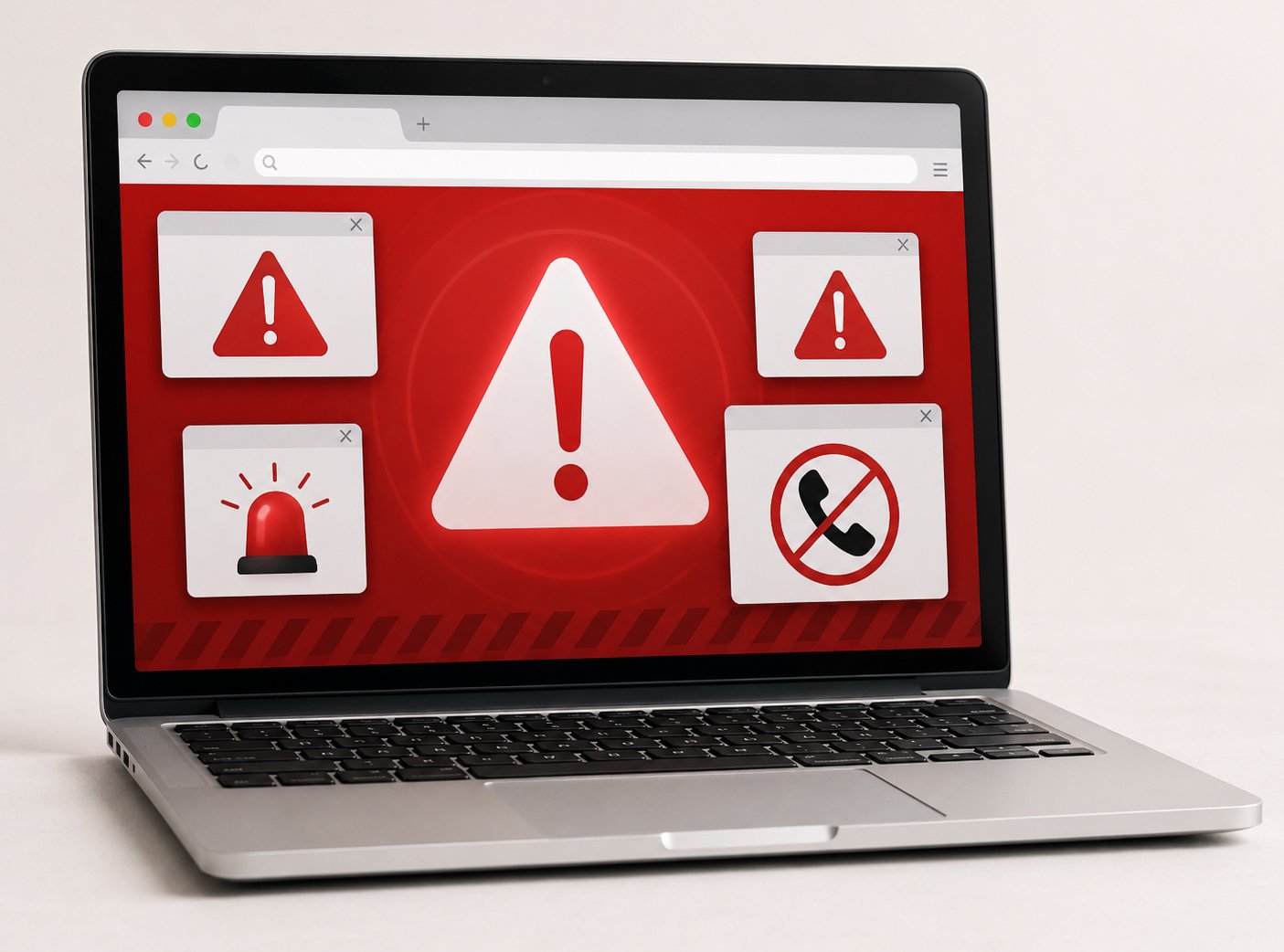
The message may say your computer has been taken over. It may say your Mac is infected. It may warn you not to shut down, not to quit Safari, not to close the window, and not to touch anything. It may even include a loud sound or a voice telling you to call a phone number immediately.
The important thing to know is this: this is usually not a real warning, and Apple would never send you anything like this, or provide a phone number to call them with.
In most cases, the computer has not been taken over. The warning is coming from a bad web page. The page is designed to scare you into thinking something terrible has happened so you will call the number on the screen. That number does not go to Apple. It goes to a scammer.
How This Usually Starts
This can happen when you click a bad link (possibly from an email), visit a hacked website, mistype a web address, or click on a misleading ad. Sometimes it can even happen on a legitimate website that has been compromised or is showing a bad advertisement.
The scary page may fill the browser window and make it difficult to leave. It may keep popping up messages. It may try to stop you from closing the tab. It may claim that closing the window will damage your computer or cause data loss.
That is part of the trick. They want you to think that your computer is affected. Usually, it is not. The scammers are trying to make you afraid to do the very thing that usually fixes the problem: shut everything down and start over.
What I Usually Have Clients Do
When someone calls me in a panic, the first thing I tell them is not to call the number on the screen and not to give anyone remote access. If possible, take a picture of the warning with your phone.
Then I usually have them turn the computer off. On most Macs, you can do this by holding down the power button until the screen goes black (5-10 seconds). On some newer Macs, the power button is also the Touch ID button. Hold it down until the Mac shuts off completely.
Then wait a few seconds and turn the Mac back on.
Very often, that is all that is needed. The frightening page disappears, the computer starts normally, and everything is fine.
What If the Same Page Comes Back?
Sometimes the browser tries to be helpful by reopening the same windows and tabs that were open before the computer shut down. Unfortunately, that can reopen the same bad page.
If that happens, do not panic. It does not usually mean the Mac is infected.
The fix may be as simple as opening a new browser window instead of restoring the old one. In Safari, Chrome, Firefox, or another browser, the goal is to avoid reopening the same bad page.
Depending on the situation, I may have a client open the browser while holding the Shift key, open a new window, close the bad tab, or clear recent browser history. The exact steps depend on which browser you are using and what reopens after the restart.
The main point is that the problem is usually the web page, not the whole computer.
What You Should Not Do
Do not call the phone number on the warning.
Do not let anyone who answers that number control your computer.
Do not give them your Apple ID password, credit card number, banking information, or any security codes.
Do not install software they tell you to install.
Do not assume that a loud warning or official-looking screen means it is real. Scam pages are designed to look urgent and convincing. They often use Apple logos, Microsoft logos, security symbols, countdown timers, or threatening language.
Real Apple security warnings do not ask you to call any phone number, much less a random number on a web page.
Why Restarting Works
A web page can be very annoying, but it is usually limited to the browser. It can display alarming messages, play sounds, and try to keep you from leaving the page. That feels like the computer is trapped.
But in many cases, the page has not actually taken control of the Mac.
Forcing the computer to shut down breaks the connection to that page. Restarting gives you a fresh chance to open the browser without going back to the same dangerous or misleading site.
This is why the first step is often simple: turn the Mac off, turn it back on, and avoid restoring the bad page.
When You Should Get Help
Most of these incidents are harmless if you do not call the number or give anyone access. But it is still worth getting help if you clicked anything suspicious, downloaded something, entered a password, gave out personal information, or allowed someone to control your computer.
Whether you can deal with this on your own or not, you can always call me for advice or help.
It is also worth getting help if the warning keeps coming back, your browser keeps opening strange pages, your search engine has changed, or you see software you do not recognize.
In those cases, I would want to check the browser settings, extensions, downloads, login items, and other common places where unwanted software can hide.
The Bottom Line
A scary message in Safari, Chrome, Firefox, or another browser can feel like a disaster. That is exactly what the scammer wants.
But most of the time, it is just a bad web page trying to frighten you.
Do not call the number. Do not give anyone access. Force the Mac to shut down, restart it, and avoid reopening the same browser page.
Usually, that is enough to make the problem disappear.